Many users opt for compressing the file for reducing disk storage space for the file, but in actual practice, the quality of the original file gets affected due to the compression technique. Some video files need to be compressed for easy mailing, to compress a video file in an easy way you can follow this link- https://www.winrarrepair.net/how-to-compress-video-files-for-emailing.html.
However, while uncompressing the compressed AVI file there are chances of media file turning corrupted. Usage of some inefficient tools are likely to cause damages to the original content of AVI file while performing the compression. Upon AVI corruption, the video remains inaccessible or unplayable. But there is a solution to fix this very issue with your valuable AVI media file.
Software to Repair Uncompressed AVI File
The WinRAR Repair is the smartest way to fix the AVI file which is damaged while uncompressing. This tool works efficiently to resolve all the issues occurred during compression and decompression of the AVI file. This AVI repair tool is highly capable of fixing different formats of video files like AVI, XVID, and DivX with great ease. This award-winning application is integrated with a powerful scan engine that deep scans the input AVI files and creates a healthy video file in no time. It also assures that original AVI video quality or the content is not altered upon repair. With the help of this software, you can even fix broken compressed files on different versions of Windows OS. This tool fixes uncompressed AVI file issues and effortlessly makes your AVI file as playable again.
What causes damages to the AVI videos?
- As we all know well that is uncompressed file takes more time to transfer when compared to compressed file because the size of the uncompressed file is large than the compressed file. If any interruption occurs while transferring uncompressed AVI file, then AVI file get corrupted and data becomes inaccessible
- In some cases, the header file gets corrupted due to which AVI file turns unplayable. But WinRAR Repair tool is capable to fix the corrupt headers
- The uncompressed AVI File may get corrupted due to its large size
- The formation of the bad sectors may on the hard drive also cause corruption of uncompressed AVI file
Simple steps to repair uncompressed AVI file
Step 1: Download the repair software and install it on your computer. The home wizard will appear as shown in Figure a.
Step 2: At first, you need to choose the uncompressed AVI file the software by clicking on the Browse button.
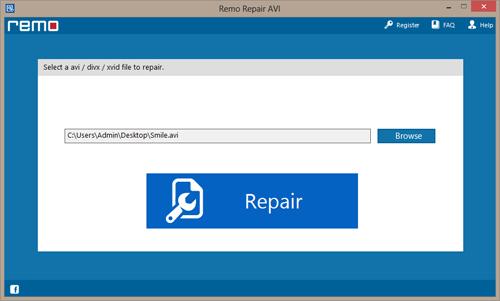
Figure a: Home Wizard
Step 3: The tool begins to fix the damaged AVI when you hit on the Repair icon.
Step 4: Up next, you can preview the fixed AVI video.
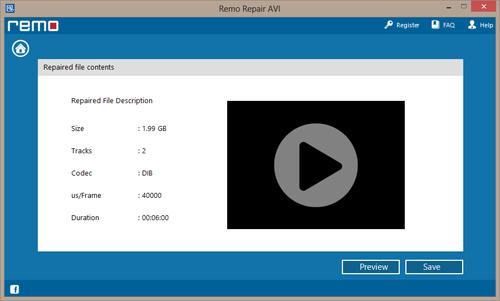
Figure b: Select AVI File
Step 5: Lastly locate the drive location where you wish to save the repaired AVI file and then click on the Save option as shown in figure c.
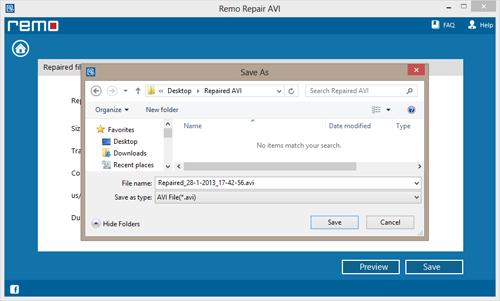
Figure c: Save Repaired AVI File

